What Is IPTV on Android TV?
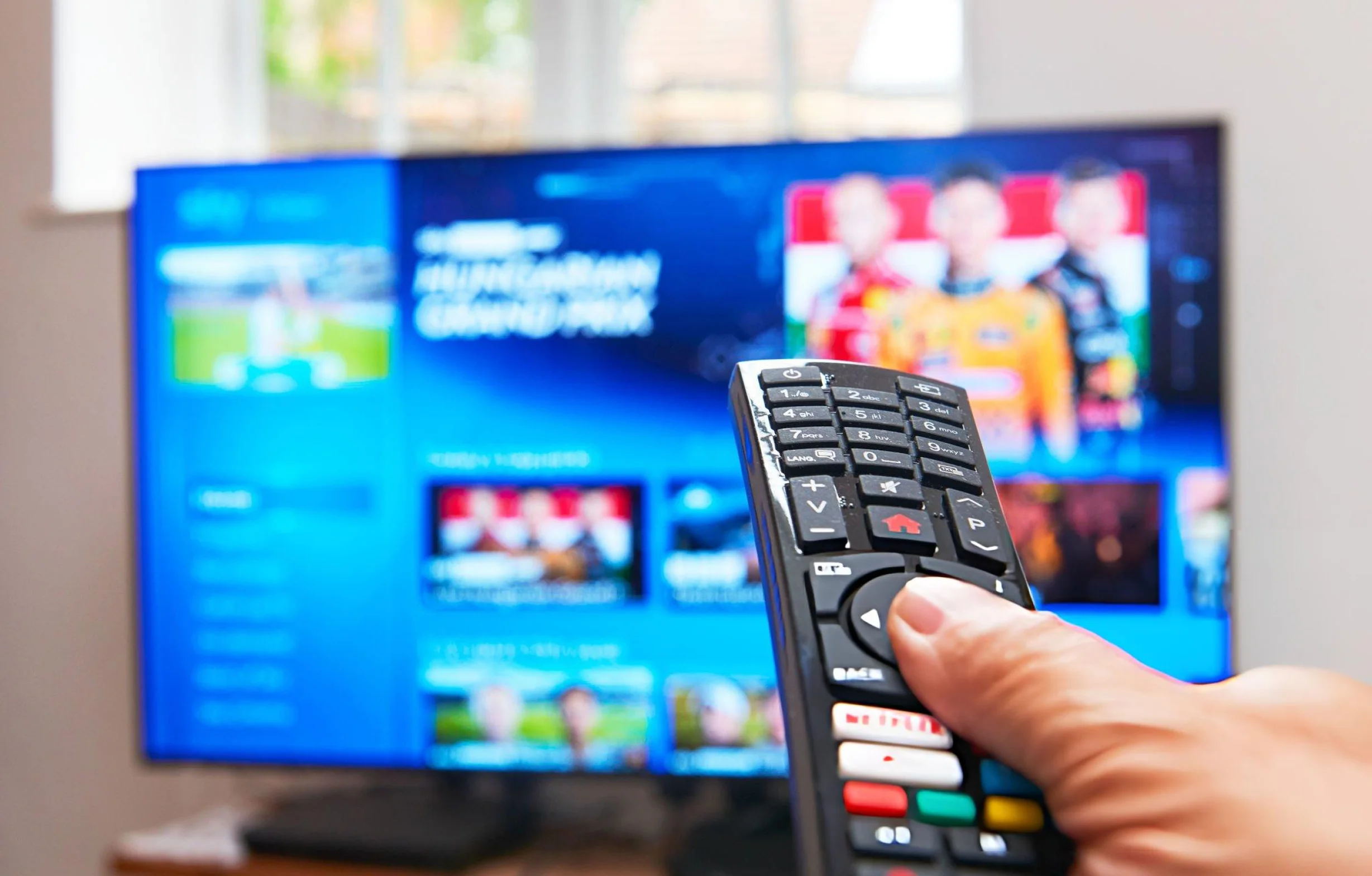
IPTV on Android TV lets you watch television delivered over an internet connection through a compatible player. You add access provided by your service, usually as a playlist or account credentials. Your TV or streaming box, player app, network, and media source all need to work together. Simply installing an app does not automatically provide channels or a subscription.
Start by identifying your device. Is Android TV built into your television, or do you use a separate streaming box connected by HDMI? This matters when checking storage, networking, and video-output settings. With an external box, you may need to check both the box and the TV. Write down the exact model before asking for support.
This guide covers how to choose a suitable player, enter your details securely, and check video playback, the program guide, and your network. Menu names vary by device manufacturer and app version. If you are still choosing a provider, read our IPTV buying guide. A working stream alone does not establish whether a provider has permission to distribute its content.
Android TV vs. Google TV
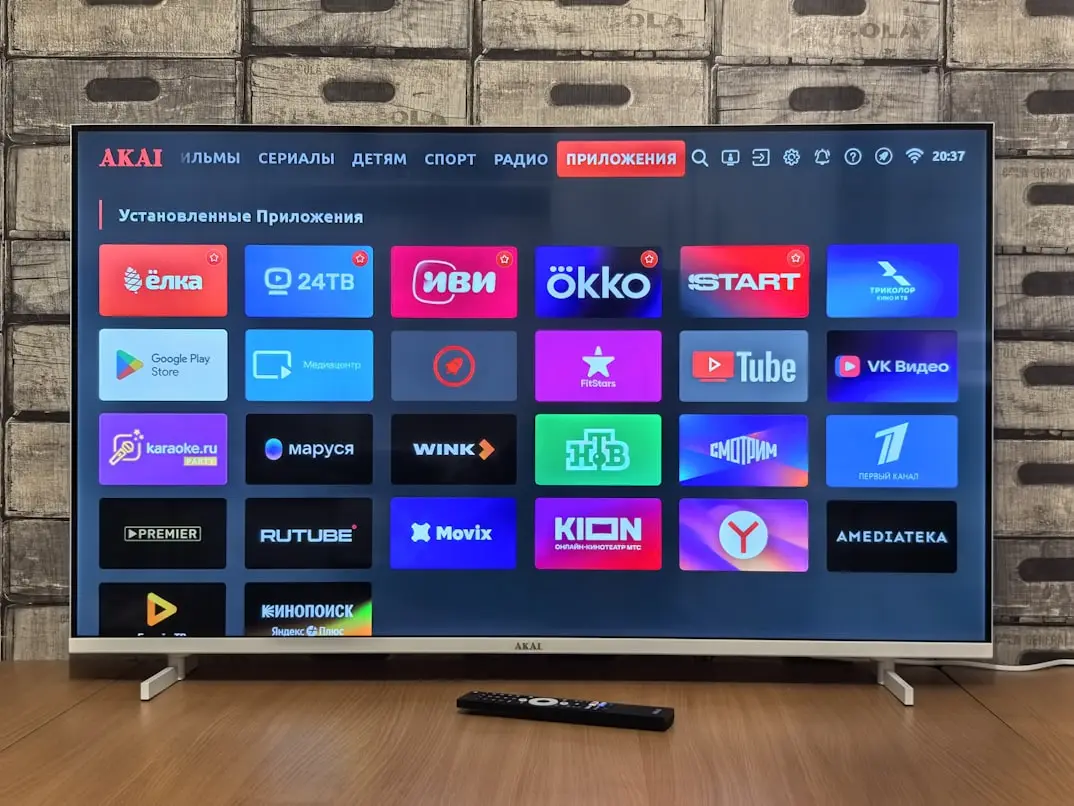
Android TV and Google TV are closely related TV platforms, but their home screens and the way they display apps and recommendations can differ. For installation, what matters most is which apps are available on your particular device. Search from the device's own app store and review the listing rather than relying solely on screenshots from another model.
Google's explanation of Google TV features notes that available features can differ by device and region. That helps explain why you may not see exactly the same menu as a tutorial. The IPTV player remains a separate app with its own settings. An app added to your TV home screen is not necessarily the same thing as a channel saved to favorites inside the player.
What does that mean during setup?
Look for the function you need, such as managing apps or checking network settings, rather than copying a sequence of button presses blindly. Consult your manufacturer's guide when menus differ. Older devices may use different Android versions and offer fewer compatible apps. That does not automatically make them unusable, but it is a reason to verify compatibility before paying for an app or subscription.
Which Devices Are Compatible?
A television running Android TV or Google TV may be able to run a supported IPTV player directly. An external box or stick can do the same through an HDMI connection. Check the precise model: a device advertised simply as "Android" may use a different interface or certification than a device designed for TV and remote-control use.
Review available storage, network options, and software updates. Large channel lists and program guides can require room for local data. Devices with very little free space may have trouble updating or syncing. Remove unused apps when appropriate, but do not erase player data until you know how to restore your account and favorites.
| Feature | Check before installation | Why it matters |
|---|---|---|
| Operating system | Exact version and supported apps | Devices from the same brand may offer different apps |
| Remote control | Navigation with directional buttons | Phone-style interfaces can be difficult to use on a TV |
| Network | Wi-Fi, Ethernet, or compatible adapter | Streaming needs a stable connection at the device |
| Storage | Space for the player, guide data, and updates | Full storage can disrupt normal operation |
| Video and audio | Formats supported throughout the playback chain | A 4K label alone does not guarantee compatibility |
Do not choose a device based only on "4K" printed on the packaging. The player and the actual video source must also match the device's capabilities.
Choosing an IPTV Player for Android TV
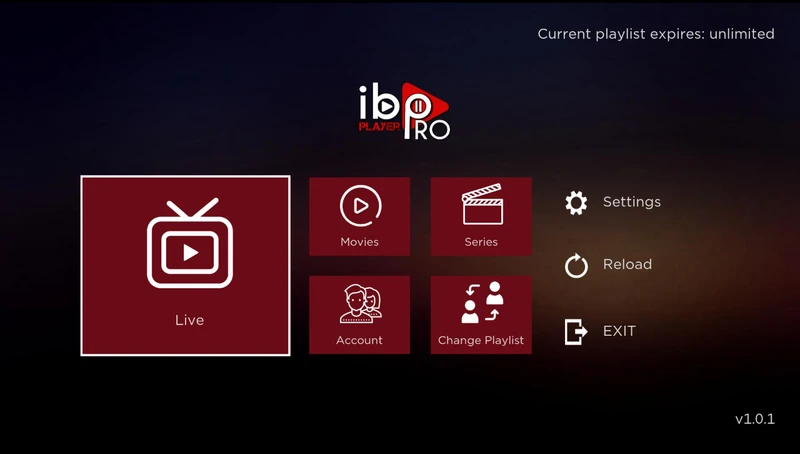
First, choose an app that supports your device and the login method supplied by your provider. Then check whether it has a TV-friendly interface. Can you return to the channel list quickly, search with the remote, and save favorites? These practical details usually matter more than decorative menu features.
Find out which functions are free and which require a separate license. Program guides, multiple playlists, or recording features may have additional conditions. A record button does not prove that a source supports recording or that your device has enough storage. Evaluate the player and the content subscription separately.
TiviMate and Smarters Pro are examples worth investigating, not automatic recommendations for every device. See our IPTV player comparison for practical considerations. Download only a version from a verified developer. If you compare players, test them one at a time with the same authorized source so simultaneous connection limits or network load do not distort the results.
How to Install a Compatible App Safely
Start with the app store available on your TV or streaming box. Search the exact app name, verify the publisher, and check supported devices and purchase terms. Grant only permissions needed for the features you use. A player should not automatically need access to every file or device in your home.
- Check for system updates and available storage on your Android TV device.
- Find the TV version of the player in an official app store available to you.
- Verify the publisher against the developer's information.
- Install and open the app without creating multiple profiles immediately.
- Review supported login methods and select the one you were given.
- Keep any app purchase receipts separate from your IPTV subscription records.
If an app is missing, downloading a random installation file is not a sensible first step. Find out whether the device is supported. Some Android phone apps can launch on a TV but are difficult to control with a remote. For alternative installation methods, use current instructions from the verified app developer and your device manufacturer; do not disable security protections without a clear reason.
Setting Up IPTV with an M3U Link
With M3U, you add a complete playlist URL or an authorized file. Give the list a recognizable local name, such as the room where the TV is located. That label only helps identify the list inside the player; it does not replace your username or affect subscription permissions or duration.
Enter the link exactly as supplied. A small change to a parameter can prevent it from loading. Watch for extra spaces, automatic capitalization, or missing characters. The complete URL may contain private account details. Do not paste it into public online URL-testing services.
Allow time for the first sync
A large playlist may take time to download and organize. Avoid repeatedly closing the app while it works. If an error appears, record the exact message. If the list loads, test a channel before reorganizing categories. Ask separately about EPG data if the guide does not appear automatically: the playlist and program guide may use different sources or refresh settings.
Entering Xtream Codes Login Details
If your player supports an Xtream-compatible login, you will usually enter a server URL, username, and password in separate fields. Use the details supplied for your account. A support email address is not necessarily a streaming username, and the customer portal may have a different address from the streaming server.
Enter the protocol and any port exactly as provided. Do not paste an entire M3U URL into the server field unless your provider specifically instructs you to do so for that app. Extra information in the wrong field can prevent login. Leave optional settings at their defaults unless the app-specific instructions say otherwise.
Once logged in, test live TV and any other available features separately. A Movies or Series menu does not guarantee those categories are included in your plan. If access stops unexpectedly, close other sessions you control and confirm that the account is active and how many simultaneous connections are allowed. Repeatedly creating new profiles will not correct invalid credentials.
Organizing Your Program Guide and Channels
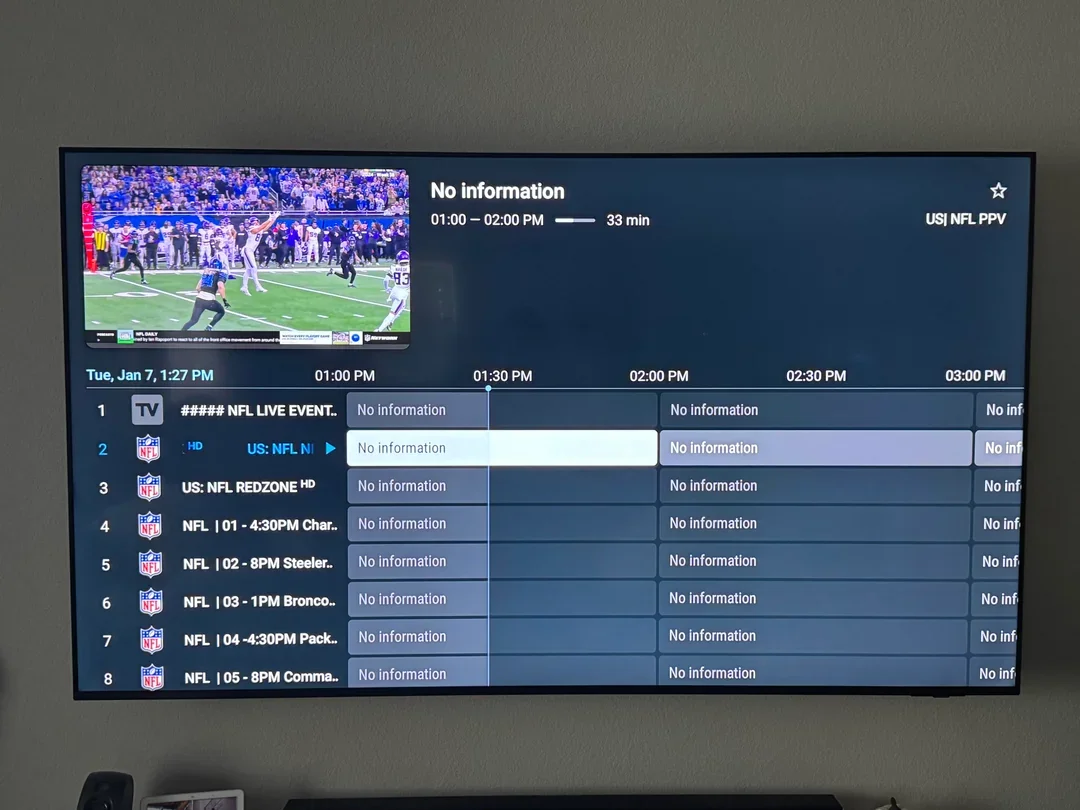
EPG stands for electronic program guide. It provides information about what a channel is airing and when. The player must receive those records and match them to the right channels. It is possible for a stream to work while the guide remains empty. First confirm whether the provider supplies guide data for the channels in question.
Set the device's date and time zone correctly. Then check the last EPG update. Some apps support manual refresh; others follow a schedule. Only apply a time offset after confirming that guide times are consistently wrong, rather than compensating for a temporary sync problem.
Start with a small favorites list
Save the channels you actually watch and check how the app sorts them. A short list makes it easier to notice missing items after updates. Hide categories only using supported features and save preferences when available. For current content information, see the Nigma TV channel overview. An old screenshot or locally cached guide does not confirm today's lineup.
Adjusting Video Quality, Output, and Sound
Choosing 4K output on a streaming box does not turn a lower-resolution source into genuine 4K. Source quality, compression, the player, device output, and television all affect the picture. Start by testing a stream that should play reliably. Check motion, sharpness, and audio instead of focusing only on the resolution label in the settings.
With an external box, confirm that the image fits the screen and subtitles are readable. Leave advanced picture-processing options unchanged while diagnosing a network issue. Judder may be related to display settings and can look like buffering. A loading spinner, frozen picture, or repeating audio offers a different clue than occasional uneven camera movement.
Change one setting at a time
Record the original value before changing decoder, audio, or video-output options. Then test the same content again. If the television does not support a particular audio format, video may work without sound. When practical, try playback without external speakers to isolate the issue. This helps you investigate the playback chain before replacing hardware or changing subscriptions.
Wi-Fi or Ethernet for Android TV?
Ethernet is useful for comparison because it removes the wireless connection between the device and router. It is not a guarantee of flawless streaming: the cable, port, router, internet path, or source can still create problems. If your box has no network port, confirm which adapters are actually supported by the model.
Wi-Fi can work well when reception is strong and congestion is limited. A box tucked behind a TV may receive a weaker signal than a phone on a table. Test from the device's real location. Another wireless band may help depending on distance and walls, but there is no universal rule that replaces testing in your own home.
Compare connections under similar conditions. Pause large downloads and play the same channel at the same quality level. Note the time, connection type, and any interruptions. If Ethernet improves playback, the wireless link deserves investigation. If both behave the same, check the source, app, and account. Our guide to stable IPTV streaming explores these troubleshooting steps in more detail.
How to Troubleshoot IPTV Buffering
Begin by determining the scope of the issue. Does one channel buffer, an entire category, or everything? Test a second authorized source in the same app. A problem with one stream calls for a different response than a box that keeps losing internet access across all apps. Note whether it happens immediately or after extended viewing.
Next, check network load. Play on one device and close other active sessions. If available, temporarily reduce stream quality. If only higher-bitrate streams struggle, that is useful evidence, but it does not conclusively prove insufficient internet speed: codec and source differences can also matter. Avoid judging from a single brief test.
What to save before troubleshooting
Do not erase all app data without preparing first. Save your configuration and favorites where possible. Clearing cache may remove temporary files, while clearing data can delete accounts and settings. Read the device's warning before confirming. If restarting and controlled tests do not help, collect your observations for support. A larger buffer may absorb short fluctuations but cannot fix a persistent lack of data.
Understanding Common Error Messages
Treat an error message as a clue, not a complete diagnosis. Similar messages may have different causes in different apps. A connection error can result from an incorrect URL, unreachable server, or local network problem. Check the simplest verifiable possibilities first and keep the exact message for support.
| Message or behavior | What to check | What not to assume |
|---|---|---|
| Login failed | Account status, spelling, and access validity | That the whole device is incompatible |
| Server unavailable | Server address and your internet connection | That changing the password will always help |
| Unsupported format | Source format and device capabilities | That faster Wi-Fi will change the format |
| Empty program guide | EPG source, sync, and time zone | That all login details are incorrect |
| App closes unexpectedly | Updates, storage, and repeatable actions | That you must immediately buy another box |
Explain exactly when an error appears: while searching, after loading a list, or when opening one video? A reproducible action helps support teams far more than a general request for "better settings." Remove credentials and other private information from screenshots.
Keeping Your Account Secure
Treat streaming access as personal account information. A full playlist URL may grant access without a separate password prompt. Store it securely and do not share it with strangers offering to repair your box remotely. Unnecessary access to your Google account is also unrelated to entering IPTV credentials.
For shared household devices, review profile or PIN controls supported by your player and device. Test those protections: hiding a category does not necessarily lock it. Agree on in-app purchases and who may change settings. Keep app purchases and subscription details where you can find them later.
- Verify the source before installing or updating software.
- Hide account details in screenshots sent for support.
- Keep a secure backup of settings before major changes.
- Confirm your plan's simultaneous-connection limit.
- Ask your provider to reset access if your credentials have been exposed.
A secured streaming box does not establish whether content is legally offered. Choose a service with clear terms and distribution rights, and evaluate those independently of the technical setup.
Frequently Asked Questions About IPTV on Android TV
Can an Android phone app run on Android TV?
Not necessarily. A phone interface may rely on touch gestures and be difficult to navigate with a remote. Check whether the developer provides a TV-specific version for your device, and use that when available.
Is Google TV a separate IPTV subscription?
No. Google TV is the software environment on your device. IPTV access is added separately through a compatible player. A Google account, player license, and content subscription are different things with separate terms.
Why do channels appear but nothing plays?
Loading a channel list and playing a video are separate steps. Try another authorized stream, check account status and connection limits, and verify video-format compatibility. Share those findings with support before rebuilding every setting.
Can I use an existing M3U link?
Yes, if the player supports M3U and the link is still valid. Enter the complete URL as supplied. When unsure, contact your provider rather than editing parts of it yourself.
Will a factory reset fix buffering?
A reset is not a sensible first step. It removes other accounts and settings and does not repair a problematic source or weak Wi-Fi. Investigate the network, player, and a few comparable streams first.
Where can I get help with installation?
The app developer can help with player features; your provider can help with account access and supplied credentials. Have the device model, software version, player name, and error message ready. Never post passwords or full playlist URLs publicly.
Complete Your Android TV Setup with Confidence
Choose a supported TV player, add one valid login method, and verify each part separately. Start with a few channels and a short favorites list. Only investigate the program guide, picture settings, and network after basic playback works. This makes problems easier to pinpoint without starting over repeatedly.
To compare plans for your device and viewing needs, VIEW IPTV PLANS. For device-specific questions, contact Nigma TV support and include your TV or box model and player details. This helps ensure the advice applies to your particular Android TV setup.