
Entertainment that moves with you.
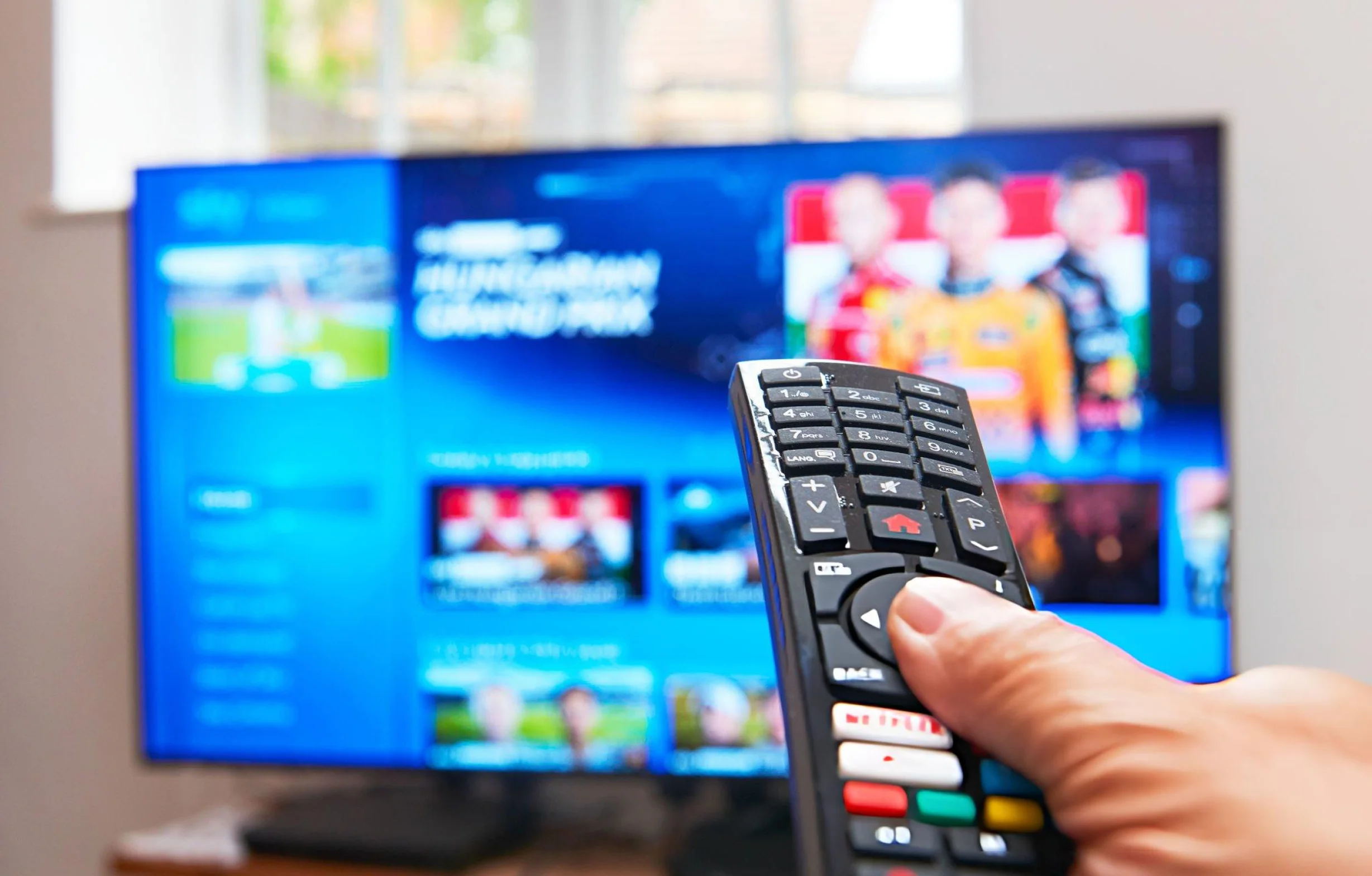
Choose a suitable IPTV player for your device. Check model compatibility beforehand.
STREAM ON YOUR FAVORITE DEVICE
COMPATIBLE IPTV APPS FOR EVERY DEVICE
Explore compatible IPTV players for Smart TVs, Android TV, Apple TV, smartphones, tablets, and computers.
Smart TV
Check your TV brand, model, and operating system. Find a compatible player in your television’s official app store. Samsung Tizen and LG webOS support different apps, login methods, and possible app fees.
Android TV & Fire TV
Choose a compatible TV player from a trusted app store. Check system requirements and keep your device updated. On Fire TV, verify the device generation and operating system, as app availability can vary.
Apple TV & iOS
Find a compatible IPTV player in the App Store and check its supported login methods. Apple TV, iPhone, and iPad may require different app versions. Availability depends on the device, software version, and region.
Smartphone & tablet
Use Wi-Fi or monitor mobile data usage. Check your app’s minimum Android or iOS version. Installing an app on multiple devices does not automatically include multiple simultaneous streams.
Windows & Mac
Use software compatible with your operating system and subscription credentials. Download it from an official source, check supported playlist or login methods, and protect your credentials on shared computers.
BEFORE YOU GET STARTED
An IPTV player is separate from a subscription. Confirm any app charges, supported login methods, simultaneous screen limits, and support terms before ordering.
CHECK YOUR TELEVISION
IPTV ON SMART TV: SAMSUNG & LG
A Smart TV can run an IPTV player directly if the app supports its operating system. For Samsung, check the TV model and Tizen version. For LG, check the model and webOS version. App availability can also vary by region. Search in your TV's app store instead of assuming an Android installation file will work on Tizen or webOS.
Find model and software information in your TV settings or the manufacturer's documentation. Menu names vary by device. Install supported updates when available, but keep in mind that updates do not guarantee access to every IPTV player.
Choose a player based on the credentials you will receive. Some apps accept M3U playlist URLs; others offer Xtream-compatible logins or registration through the app provider. Check for one-time or recurring app fees. IPTV player app fees are separate from Nigma TV subscription charges.
Enter your credentials only after checking that the app supports the correct login method. Avoid altering a complete M3U URL or putting a server address in the wrong field. If activation fails, record the error and contact Nigma TV support.
STREAMING STICKS & BOXES
IPTV ON ANDROID TV & FIRE TV STICK
Android TV and Google TV
Google TV is a user interface built on Android TV OS. Some devices use the Android TV interface instead. Search Google Play on your TV or streaming box for a suitable IPTV player and check its system requirements. A touchscreen Android app may not work well with a remote control.
Fire TV requires its own compatibility check
Check your Fire TV Stick generation and operating system. Different devices may use Fire OS or Vega OS, and not all apps are supported across both. Use the Amazon Appstore on your specific device and verify the available app version. Do not assume an installation file for another model will work.
Keep the player and operating system updated. If installation fails, check available storage. Ethernet requires a supported port or adapter. Wi-Fi is also an option, but connection quality depends on the signal where the stick or box is installed.
IPTV ON APPLE TV, IPHONE & IPAD
Check the right Apple platform
Apple TV uses tvOS, iPhone uses iOS, and iPad uses iPadOS. Check the App Store listing for the device you plan to use: an iPhone app is not automatically available on Apple TV. Some older Apple TV models do not support installing new apps from an App Store.
Choose a compatible IPTV player in your device's App Store. Check minimum operating-system requirements, supported login methods, and any in-app purchases. Availability may vary by country and device.
From app installation to playback
Verify that your supplied M3U link or Xtream-compatible details can be entered into the chosen app. Some players require registration with the app provider. Follow the provider's instructions and check licensing terms for each device.
For Android phones and tablets, follow the same approach using their supported app store. Mobile streaming can consume substantial data. The number of devices you can stream on simultaneously depends on your Nigma TV subscription and screen selection.
WATCH IPTV ON WINDOWS & MAC
On a computer, use a media player compatible with your Windows or macOS version and the streaming format you received. Desktop players vary in program-guide support, playlist handling, and sign-in options. Confirm that your chosen software supports your credentials.
Download software from an official app store or the developer's website. Avoid misleading download buttons and unexpected bundled programs. Keep the operating system and player updated, and pause heavy background downloads while troubleshooting buffering.
Keep playlist URLs and login details private, especially on shared computers. Do not include passwords in public screenshots. For more guidance, explore our IPTV articles and practical guides.
COMPARE DEVICES & OPERATING SYSTEMS
WHICH IPTV DEVICE IS RIGHT FOR YOU?
| Device | What to check | Installation | Learn more |
|---|---|---|---|
| Samsung Smart TV | TV model, Tizen version, and regional app availability. | Install a compatible TV app from the built-in app store and check its sign-in options. | Guide for Samsung Smart TV |
| LG Smart TV | TV model, webOS version, and apps available in your region. | Choose a supported IPTV player from the TV app store. | Guide for LG Smart TV |
| Android TV | Android TV OS version and remote-control compatibility. | Install a compatible TV application from Google Play. | Guide for Android TV |
| Fire TV Stick | Device generation, Fire OS or Vega OS, and app availability. | Choose an app from the Amazon Appstore that supports your model. | Guide for Fire TV Stick |
| Apple TV | Apple TV model, tvOS version, and App Store availability. | Choose a compatible tvOS app and check its system requirements. | Guide for Apple TV |
| Phone / Tablet | Android, iOS, or iPadOS version and any app fees. | Install a supported mobile player from the official app store. | Guide for Phone / Tablet |
| Windows / Mac | OS version, software source, and accepted login format. | Install compatible software from a trusted source. | Guide for Windows / Mac |
PREPARE FOR A SMOOTH START
INSTALL IPTV ON YOUR DEVICE
Check your device
Find your device brand, model, and operating-system version. Check whether an appropriate app is available and whether you have enough free storage.
Choose a compatible IPTV player
Compare supported login methods, remote-control usability, and app licensing costs. TV and mobile versions may offer different features.
Install the app
Use your device's official app store or a trusted developer source. Apply supported updates and review app permissions before continuing.
Enter your access details
Use the M3U playlist URL or Xtream-compatible login information you received. Verify the server URL, username, and password without sharing them publicly.
Test picture and sound
Try several available channels, confirm audio and video playback, and check the electronic program guide if provided. Save error messages if you need support.
HOW TO GET STABLE IPTV ON YOUR DEVICE
Check the entire streaming setup
Playback quality depends on the video source, your internet connection, IPTV player, and device. A 4K display does not turn lower-resolution content into true 4K video. Processing power, supported codecs, and available storage can also affect app performance. Confirm what streaming quality is available for the content you want.
An Ethernet connection can help rule out Wi-Fi interference if your device supports it. If you use Wi-Fi, check signal strength near your TV or streaming stick. Heavy downloads and simultaneous network traffic may affect playback. A fast speed test alone does not guarantee every stream will remain stable.
Update your streaming app and check whether issues affect one channel or several. If possible, test a lower playback resolution. Change one setting at a time so you can identify what improves performance. For more tips, read our guide to smoother streaming.
ANSWERS TO YOUR DEVICE QUESTIONS
FREQUENTLY ASKED QUESTIONS ABOUT IPTV DEVICES
Which devices support IPTV?
Smart TVs, streaming devices, smartphones, tablets, and computers can support IPTV when a compatible player is available for their operating system. Check your exact device model, software version, and supported login methods. See our device compatibility comparison or contact Nigma TV support for help choosing a compatible device.
Does IPTV work on Samsung Smart TVs?
IPTV compatibility depends on your Samsung TV model, manufacturing year, Tizen version, and available apps. Search the Samsung TV app store for a compatible IPTV player and check its system requirements. Android apps do not automatically work on Tizen. Read our Samsung Smart TV setup guide before installing a player.
Can I use IPTV on an LG Smart TV?
Yes, if a compatible IPTV player is available for your LG TV model, webOS version, and region. Check the LG Content Store or the app store available on your TV. Confirm the supported login methods and whether the player requires a separate payment. For more information, see our Smart TV compatibility guide.
How do I install IPTV on a Fire TV Stick?
First, identify your Fire TV Stick model and operating system. Find a compatible IPTV player in the Amazon Appstore and verify that it supports your login credentials. App availability can differ between Fire OS and Vega OS devices. Follow our complete IPTV setup guide for step-by-step installation instructions.
What is the difference between Android TV and Google TV?
Google TV is an interface built on Android TV OS, while other devices use the traditional Android TV interface. Both may support IPTV players, depending on the device model, operating system version, and app availability. Check the Google Play Store and verify that your selected player supports remote control navigation.
Do I need a separate IPTV player?
You need a compatible app or media player to access the streams associated with your subscription. Some players require separate installation, activation, or licensing fees. Check whether the player supports M3U playlists or Xtream-compatible login credentials. A paid player app does not automatically include an IPTV subscription. Explore our Nigma TV subscription plans to compare your options.
Can I use IPTV on multiple devices?
You can install compatible IPTV players on multiple devices, but simultaneous streaming depends on the number of connections included in your subscription. Some player apps may also require separate licenses for different devices. Compare our Nigma TV plans and screen options to choose the number of simultaneous screens you need.
Why is my IPTV app not working?
First, identify whether the app fails to launch, login credentials are rejected, or playback is buffering. Check your internet connection, device compatibility, app version, and login details. If only one channel is affected, the player itself may not be the cause. Contact Nigma TV support with your device model, app version, and any error message. Never share your passwords publicly.
READY TO SET UP IPTV ON YOUR DEVICE?
Find a compatible IPTV player for your device and follow the Nigma TV installation guide to get started.